
Free CV maker
How to use it
Four steps from an empty form to a PDF file.
Saved on this device
Your CV is saved automatically in this browser. In private mode, or after the site data is cleared, it is gone, so also save it to a file from the File menu.
ATS-readable PDF
Download PDF keeps the page exactly as it looks in the preview, together with the CV text, so the text can be selected and read by applicant tracking systems (ATS). For ATS, a one-column template is the safest choice.
- Step 1
Fill in your details
Start with your name and profession. While the form is empty, the A4 page shows sample content so you can already see the shape of the CV. Add as many jobs, schools, skills and projects as you need.
- Step 2
Choose a template
Open the Template tab, filter by style (Formal, Colourful, Creative or Dark), then click a picture. The pictures use your own CV content, and the A4 page switches design straight away.
- Step 3
Check the pages
The preview shows each A4 page separately, exactly as in the downloaded file. The status line under the editor tells you how many pages there are.
- Step 4
Download
Download PDF in one click. The text in that PDF can be selected and read by ATS. The PNG button next to it gives you an image version.
Frequently asked questions
Is it really free?
Yes, free and with no sign-up. All 55 templates and the PDF and PNG downloads can be used as often as you like.
Is my CV sent to a server?
No. Your CV is processed and turned into a PDF or PNG in your own browser. The data is saved automatically in the browser storage (localStorage) on this device, so it is still there when you come back. Choose Start from scratch in the File menu to delete it.
Can ATS read the PDF?
Yes. Download PDF keeps the page exactly as it looks in the preview and places the CV text right on top of every line. That text can be selected, searched with Ctrl+F and read by applicant tracking systems (ATS), and the email and profile links in the CV can be clicked. Your name, job title and skills also go into the PDF document properties. For the cleanest reading order in an ATS, choose a one-column template. Sections a template does not show, such as projects in some templates, are not in the PDF either.
Why does my CV run to more than one page?
When your CV is longer than one A4 sheet, the editor moves entries or lines that do not fit to the next page, without cutting text and without leaving a section heading alone at the bottom of a page. The preview shows each page separately, exactly as in the downloaded file, and the status line tells you the page count. Shorten the descriptions or choose a more compact template if you want it on one page.
Can the CV be in another language?
Yes. In the Template tab, choose a language under Heading language. Section headings such as Work Experience and the month names switch to that language, while the text you typed stays exactly as you wrote it. There are 30 languages to choose from, including ones with non-Latin scripts, and the text stays readable in the PDF.
How do I move my CV to another device?
Open the File menu and choose Save data to a file. You get a .json file with everything in your CV, including the photo. On the other device, open this page and choose Open data from a file.
How big is the PNG file?
Each page is 1588 x 2246 pixels, twice the size of the preview. A one-page CV downloads as one PNG file, and a longer CV downloads as one PNG file per page.
More free tools
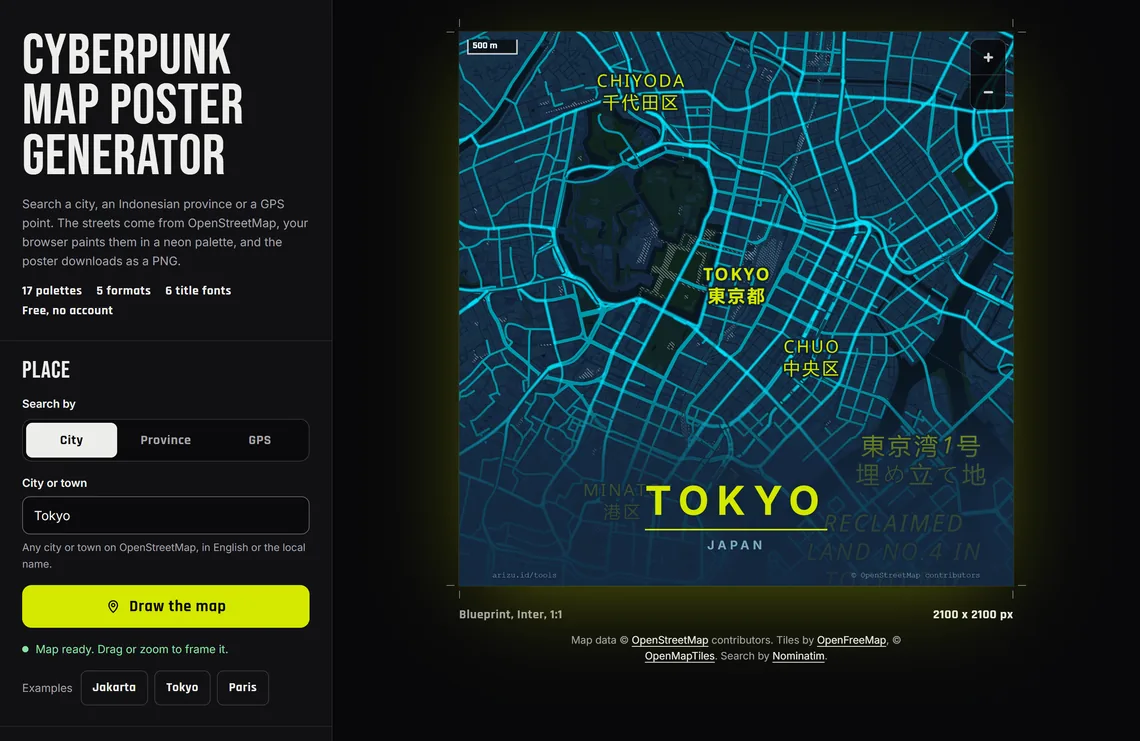
Map design
Cyberpunk Map Poster
Browser + OpenStreetMap
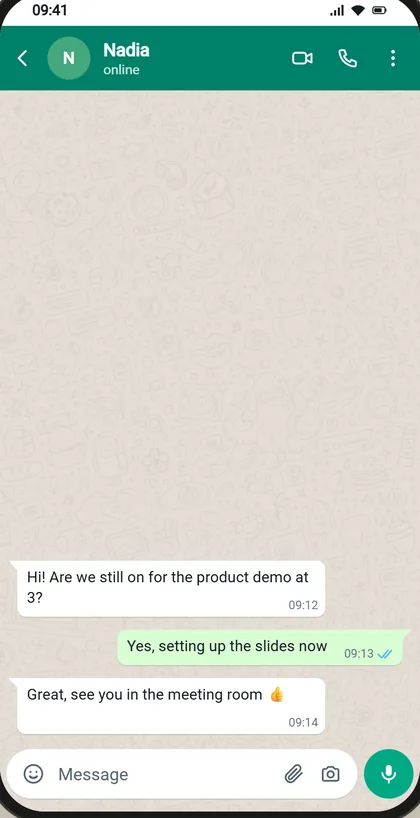
Chat mockup
WhatsApp Chat Generator
In your browser
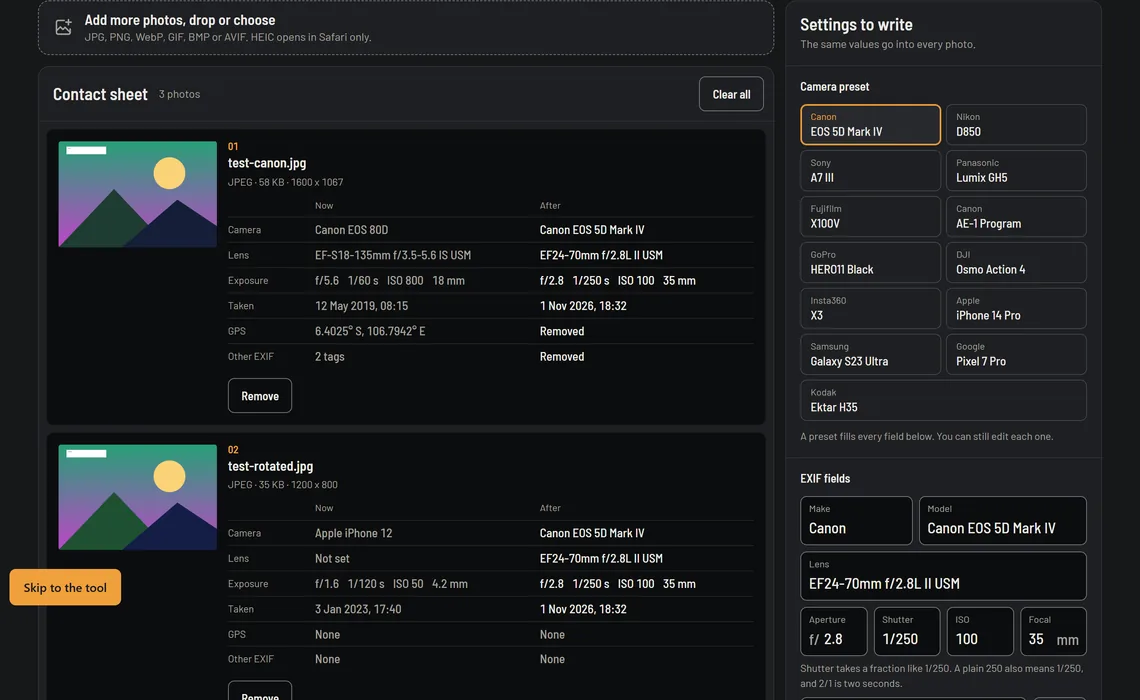
Photo metadata
EXIF Image Editor
In your browser
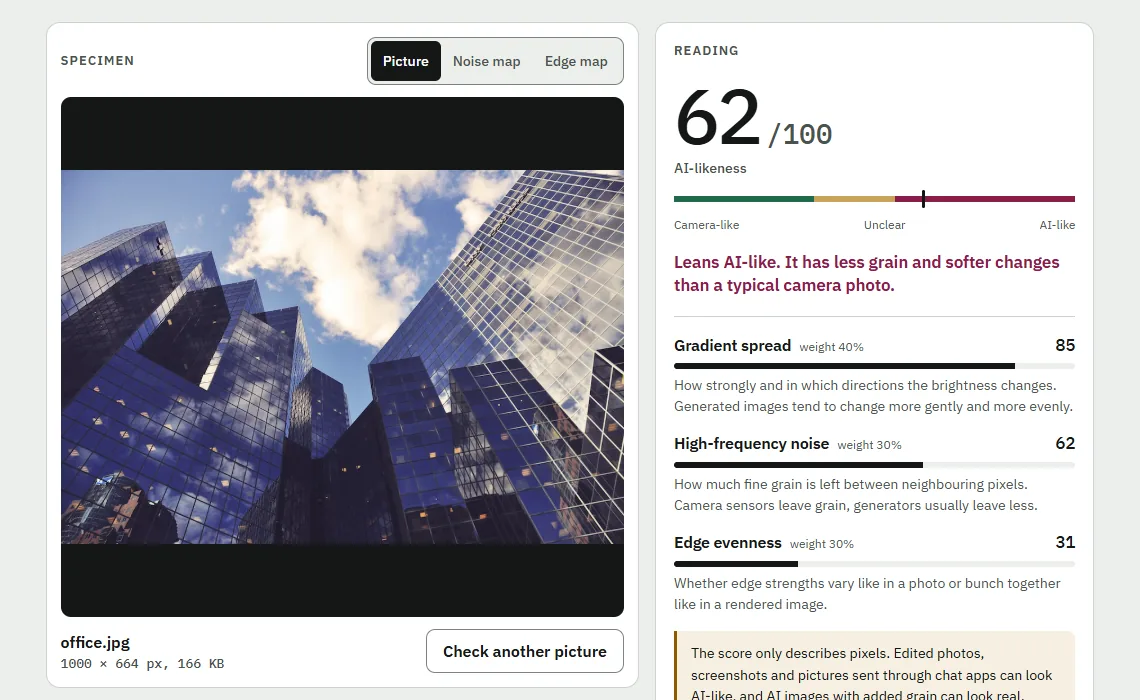
Image check
AI Image Detector
In your browser
ID card OCR
KTP Reader
In your browser
Certificate
Sertifikat IMPHNEN
Made on our server