

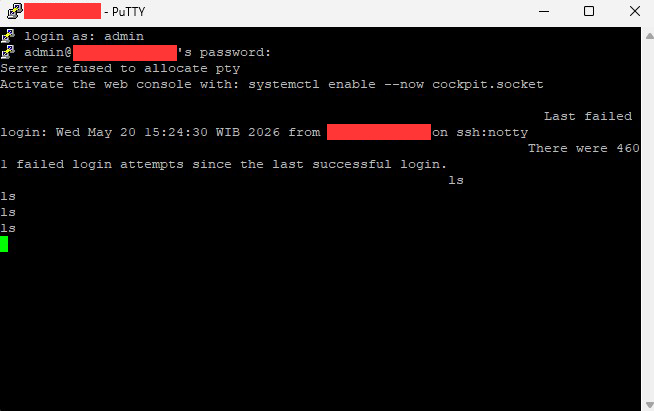
Managing a VPS or dedicated server is usually smooth sailing—until you are suddenly locked out of your own terminal. If you are reading this, chances are you are staring at a frozen SSH screen right now, feeling a mild sense of panic as your keystrokes fail to register or return strange permission errors. But don’t worry! You are not alone, and more importantly, your server is not completely broken. In this technical guide, I will walk you through a quick, remote fix to bypass the frustrating ‘Server refused to allocate pty’ error and get your command line back up and running in minutes
How to Fix “Server Refused to Allocate PTY” and Frozen SSH Terminal
Have you ever successfully logged into your VPS via SSH, only to find that you cannot type a single command? Your terminal freezes, the text you type cascades downwards like a staircase, and you might see a barrage of errors like this:
/etc/profile: line 70: /dev/null: Permission denied
Or worse, your SSH client strictly rejects you with:
PTY allocation request failed on channel 0Server refused to allocate pty
Do not panic. Your server is not completely dead, and you do not necessarily need to reinstall the OS. This is a common issue caused by missing or corrupted permissions in your Linux system’s device nodes—specifically /dev/null and /dev/ptmx.
Since you cannot interact with the server from the inside, you will need to force a fix from the outside. Here is the complete guide on how to resolve this issue.
Understanding the Problem: Why Does the Terminal Freeze?
To understand the fix, you need to understand what broke. When you connect via SSH, the Linux server assigns you a Pseudo-Terminal (PTY)—a virtual screen that bridges your keystrokes with the server’s shell.
-
/dev/ptmx(Pseudo-Terminal Master Multiplexer): This file is responsible for creating these virtual terminals. If its permissions are altered or the file is accidentally deleted, the server simply cannot generate a terminal interface for you, resulting in the “Server refused to allocate pty” error. -
/dev/null(The Black Hole): This is where Linux scripts send unwanted output. When logging in, background scripts (like/etc/bashrcor/etc/profile) try to write to/dev/null. If this file’s permissions are broken, these scripts fail aggressively, causing permission denied loops that freeze the shell entirely.
The Solution: Executing Remote Commands via SSH
Because your interactive shell is broken, we have to bypass it. We will use SSH to pass commands directly to the server without requesting a terminal interface.
Close your frozen SSH session (like PuTTY or your local terminal). Open a fresh Command Prompt, PowerShell, or local Terminal on your computer, and run the following two steps.
Step 1: Restore /dev/null Permissions
First, we need to stop the background scripts from failing by recreating /dev/null with the correct format and global write permissions.
Run the following command from your local machine. (Note: Replace user, YOUR_SERVER_IP, and YOUR_PASSWORD with your actual server credentials).
ssh user@YOUR_SERVER_IP "echo 'YOUR_PASSWORD' | sudo -S su -c 'rm -f /dev/null && mknod -m 0666 /dev/null c 1 3'"
What this does: We are securely passing your password into sudo -S so the command can run with root privileges without prompting you on a broken screen. It forcefully removes the corrupted /dev/null file and uses mknod to recreate it as a character device file (c 1 3) with open read/write permissions (0666).
Step 2: Fix /dev/ptmx and Mount the Terminal
Once the scripts are quiet, we need to fix the terminal allocator so you can actually type again. Run this second command from your local machine:
ssh user@YOUR_SERVER_IP "echo 'YOUR_PASSWORD' | sudo -S su -c 'rm -f /dev/ptmx && mknod -m 666 /dev/ptmx c 5 2 && chmod 666 /dev/ptmx && mount -t devpts devpts /dev/pts'"
What this does: Similar to the first step, this removes any broken /dev/ptmx file and rebuilds it (c 5 2). We enforce the 666 permissions to ensure all users can request a terminal. Finally, mount -t devpts mounts the pseudo-terminal filesystem, which is the final piece required to render your command line properly.
Clean Up and Security Best Practices
Wait a few seconds for the commands to finish executing. Once you are returned to your local command prompt, you can open your SSH client and log in normally. Your server should now be fully responsive.
Important Post-Fix Security Steps:
-
Clear Your Local History: Because you passed your password in plain text within the command line, it is now saved in your local terminal history. Clear your local bash history (
history -c) or immediately change your server’s admin password. -
Harden Your SSH Configuration: These types of system file corruptions can sometimes be the aftermath of automated attacks or messy scripts. Check your server logs for brute-force attempts. If you haven’t already, change your default SSH port from
22to a custom port, disable password authentication in favor of SSH Keys, and install Fail2Ban to block malicious IP addresses automatically.
Running into the ‘Server refused to allocate pty’ or ‘/dev/null permission denied’ error can feel like a sysadmin’s nightmare, especially when you are entirely locked out of the shell. However, by bypassing the interactive terminal and pushing those two remote SSH commands, you can easily restore your device nodes and regain full access without needing to reinstall your OS.
Did this guide help save your server from a forced reboot? Or do you have another trick to handle frozen SSH sessions? Let me know in the comments below, and don’t forget to bookmark this page for your future system administration needs!
About The Author