1. Introduction
Welcome to Country Bounce Live! Thank you for purchasing this product.
Country Bounce Live is a highly interactive, physics-based game designed specifically for TikTok Live streamers. Viewers can type country names in your stream's chat to spawn their country's ball into the arena. Viewers can also send TikTok Gifts to launch bombs that blast holes in the arena wall, leading to a chaotic battle where the last country standing wins.
This project is built using Python (Flask) for the secure backend and TikTok API connection, and Matter.js for the smooth HTML5 physics frontend.
2. Requirements
Before installing the game, ensure your computer meets the following minimum requirements:
- Operating System: Windows 10/11, macOS, or Linux.
- Python: Python 3.9 or newer installed. (Make sure to check "Add Python to PATH" during installation on Windows).
- OBS Studio: Or any streaming software that supports Browser Sources (e.g., Streamlabs OBS).
- Internet Connection: Required to connect to the TikTok Live API.
3. Installation Guide
Follow these steps to get your server running on your local machine.
- Extract the downloaded zip file and open the
Sourcefolder. - Open your Terminal or Command Prompt.
- Navigate to the
Sourcefolder inside the extracted project (replace the path below with wherever you extracted the zip):# Windows cd path\to\CountryBounce\Source # macOS / Linux cd path/to/CountryBounce/Source - Install the required Python dependencies by running:
pip install -r requirements.txt
- Once installed, start the game server:
python app.py
4. OBS Studio Setup
To display the game on your TikTok Live, you need to add it to OBS Studio.
- Open OBS Studio and create a new Scene.
- In the Sources panel, click the
+button and select Browser. - Name it "Country Bounce Game" and click OK.
- In the Properties window, configure the following:
- URL:
http://localhost:5000/ - Width:
1080 - Height:
1920 - Custom CSS: Leave default or clear it.
- Check the box for "Control audio via OBS" if you want to control game volume in OBS.
- URL:
- Click OK. The game arena should now perfectly fill your vertical canvas.
5. Admin Panel & TikTok Setup
The Admin Panel allows you to control the game securely from your browser while streaming.
Accessing the Panel
Open your web browser (Chrome, Edge, Safari) and go to:
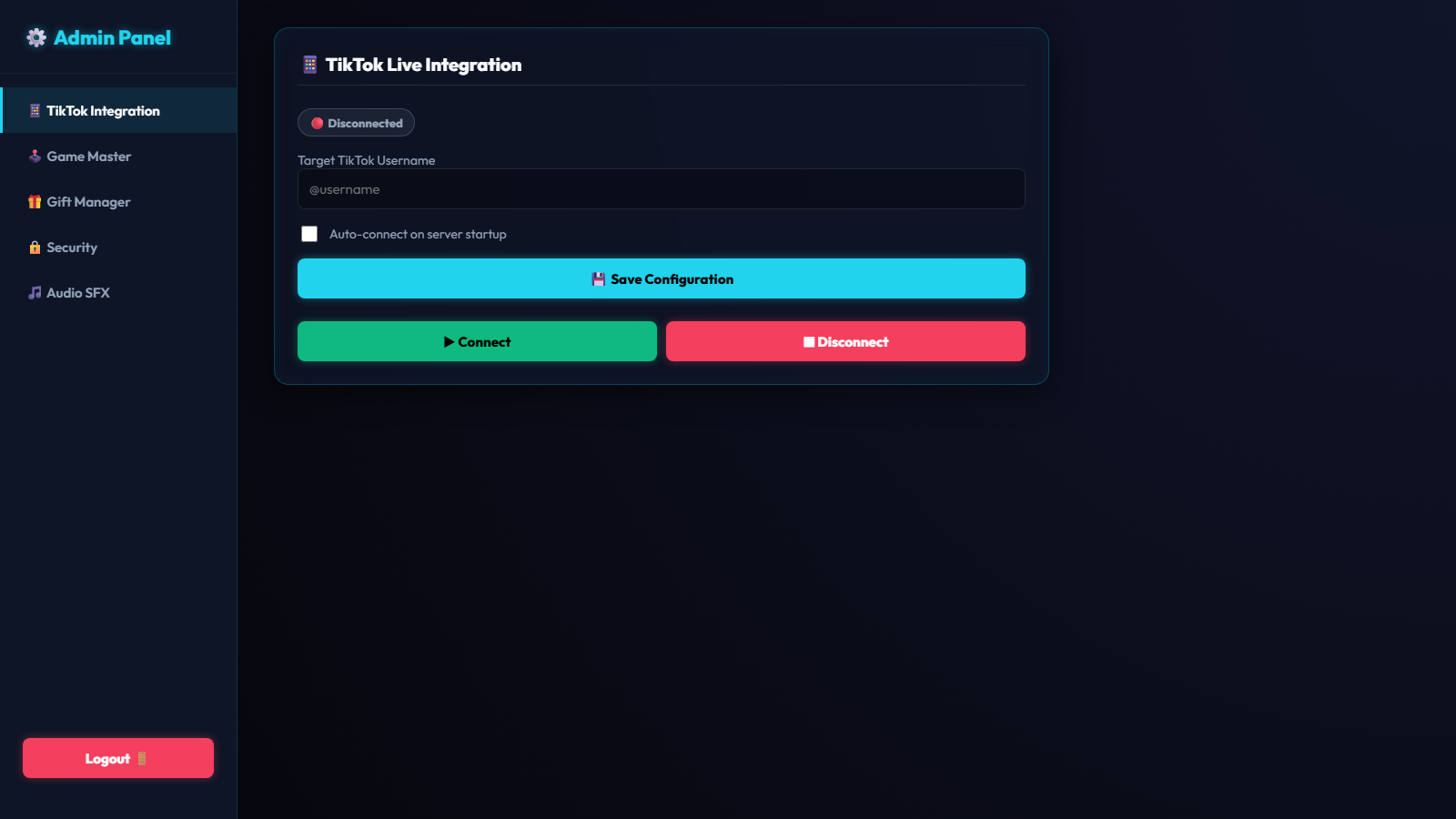
Logging In
The first time you run the server with no password set, it sets the default Admin password admin123 and prints it in the terminal. Log in with it, then change it in the Security tab of the Control Panel before you go live. After that, enter your own password to log in. This prevents unauthorized access to your game controls.
Connecting to TikTok
- In the Admin Panel, find the TikTok Live Connection card.
- Enter your exact TikTok Username (without the @ symbol). Note: Your account MUST be currently Live.
- Click Connect. The status badge will change to a green Connected.
6. How It Works (Communication Flow)
Understanding the data flow helps when troubleshooting or extending the script. There are three moving parts, all running locally on your machine:
- TikTok Live connection: when you click Connect in the Admin Panel,
tiktok_connector.pyopens a connection to your live room and listens for two event types: chat comments and gifts. - Comment → Spawn: each comment is matched (case-insensitively) against the bundled country name/code list. A match is emitted as a
spawn_ballSocket.IO event. - Gift → Bomb: each gift is looked up in your configured Gift Mapping to get a bomb count, then emitted as an
add_rocketsSocket.IO event. - Backend → Frontend: Flask-SocketIO broadcasts these events over a WebSocket connection to every connected browser tab (your OBS Browser Source, and any preview tab you have open).
- Frontend rendering:
game.jslistens for these events and drives the Matter.js physics engine (spawning balls, firing bombs, breaking pieces out of the arena wall, and detecting the winner) entirely client-side, so gameplay stays smooth even on a modest server. - Persistence: the current match state (phase, timer, leaderboard, balls in play) is periodically saved to
Source/game_state.jsonon the server, so a page refresh (e.g. OBS reloading the source) resumes the match instead of losing progress.
The Admin Panel itself talks to the backend two ways: instant actions (simulate spawn/gift, start battle, reset) go over the same Socket.IO connection, while configuration changes (gift mapping, sounds, game settings, password) are saved via regular HTTP requests to /api/tiktok/config and written to Source/tiktok_config.json.
7. Gameplay Mechanics
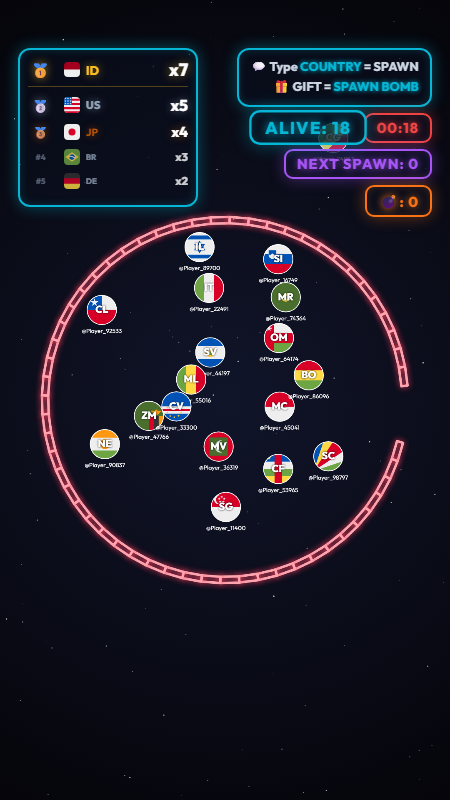
Spawning Countries
Viewers simply need to type the name of a country or its abbreviation in the TikTok chat. The system is case-insensitive.
- Example:
Indonesiaorindonesia - Example:
IDorid
The Phases
- WAITING: The arena sits empty until the first viewer joins. If nobody joins within 20 seconds, the game automatically spawns a bot to kick things off so the show never stalls.
- PRE_SPAWN (15s): Once the first player joins, a 15-second "Waiting for Players" countdown starts. Any viewer can still join during this window.
- SPAWN / GET READY (10s): A final 10-second countdown before battle. The match requires a minimum number of players (configurable in the Admin Panel, default 5). From the start of PRE_SPAWN, while the arena has fewer balls than that minimum, a bot joins every 2 seconds. If the countdown ends with fewer balls than the minimum, or with balls from only one country, the timer holds and shows "NEED 5" (your minimum) until both conditions are met, and then Battle starts.
- BATTLE (20s): The balls begin to move and collide, and bombs start flying in. If only one country is left before the 20 seconds run out, it wins straight away. If more than one country is still in the arena when the timer reaches zero, Chaos begins.
- CHAOS (no time limit): The timer changes to "CHAOS". The ring stays in place, but the opening in its wall widens to 6 of its 60 segments (room for 3 full-size balls side by side, up from 3 or 4 segments during Battle), the ring spins about 3.3 times faster, and every ball moves 2.2 times faster. Bombs keep flying in, and the holes they make stay open until the match ends. A ball is eliminated when it flies out through an opening and leaves the screen. When every ball left belongs to one country, that country wins. If the last balls all leave at the same moment, the match ends with no winner.
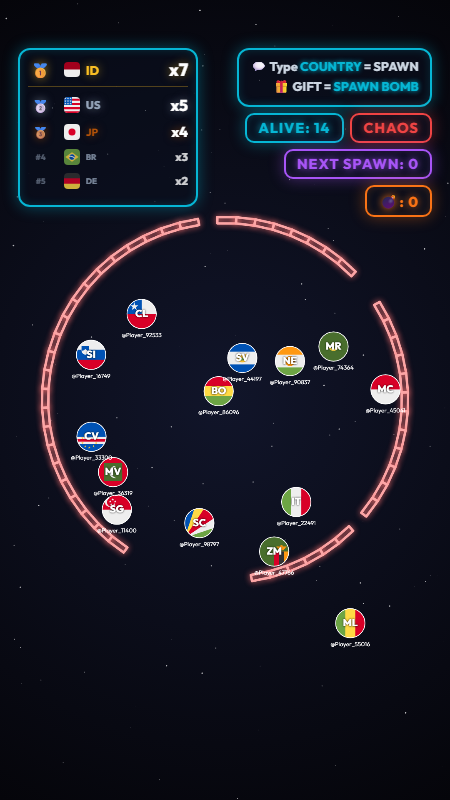
Bomb System
During the Battle and Chaos phases, a default bomb flies in automatically every 5 seconds. Each bomb that hits the arena wall knocks one segment out of it, opening a new gap that balls can escape through. Viewers can send specific TikTok Gifts to queue additional bombs, which fire one every 1.5 seconds on top of the automatic ones, drastically speeding up the game and causing massive chaos. Gift bombs sent before Battle wait in the queue until Battle starts.
On-Screen Indicators
- ALIVE: Number of balls currently in the arena.
- Timer: Countdown for the current phase (or "NEED 5" while the start of Battle is on hold, and "CHAOS" once the Chaos phase begins).
- NEXT SPAWN: Comments typed while a match is already in Battle/Chaos can't spawn immediately, so they're queued for the next match. This counter shows how many are waiting, so viewers know their comment was received even while the current match is still playing out.
- 💣 Bomb Counter: Number of bombs queued to be fired.
8. Customization (Audio & Assets)
You can customize almost every aspect of the game through the Admin Panel.
Audio SFX Configuration
In the Admin Panel's 🎵 Audio SFX tab, you can easily change the sound effects without touching any code.
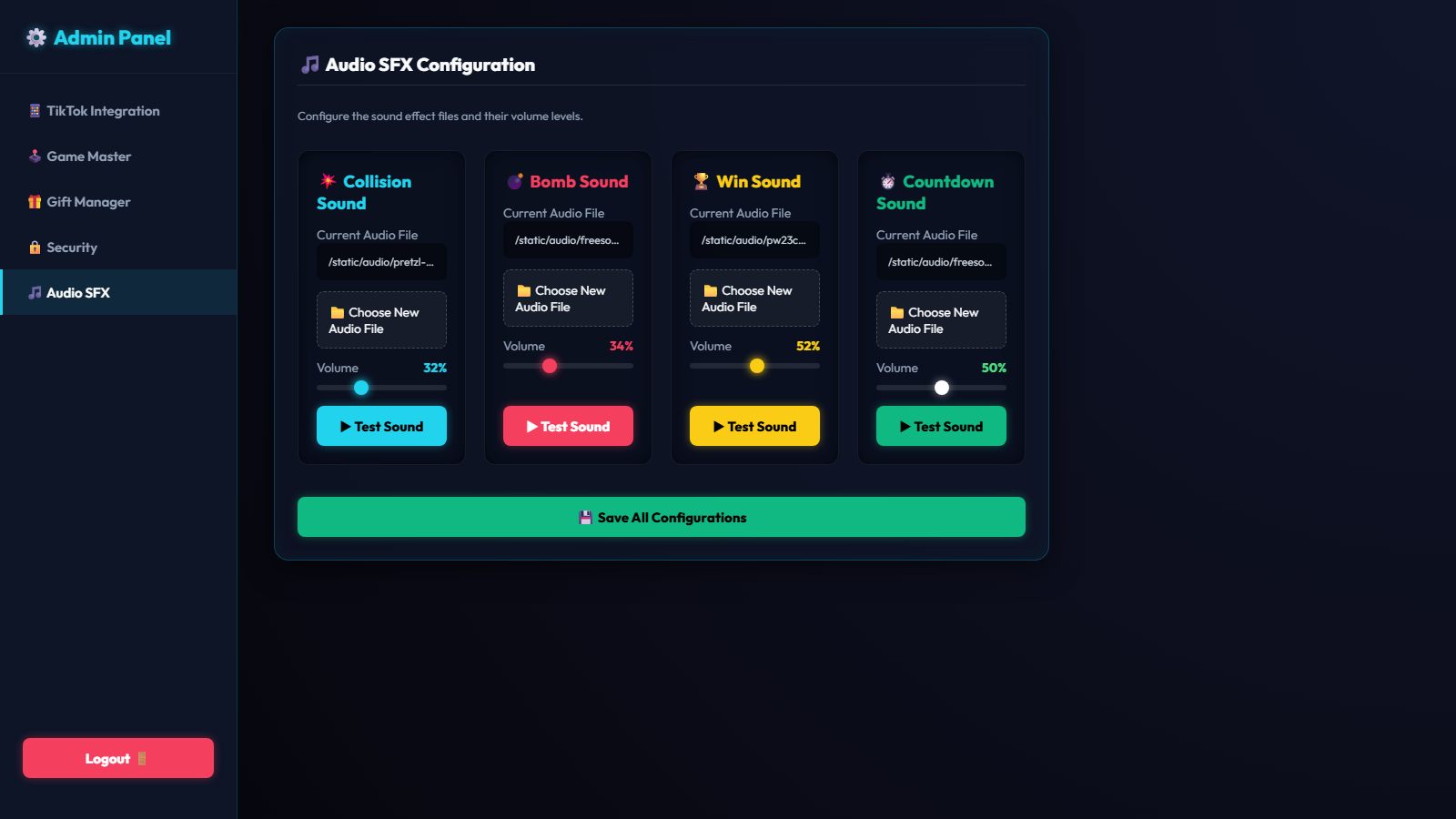
- Click the Choose File button under the sound you want to change (Collision, Bomb, Win, or Countdown).
- Select an
.mp3,.wav, or.oggfile from your computer (Max 5MB). - The file will automatically upload securely to your server.
- Adjust the Volume slider to your preference.
- Click Save All Configurations.
The Countdown sound plays once per second during the "GET READY" countdown just before Battle starts.
Gift Mapping
In the 🎁 Gift Manager tab, you can define exactly how many bombs a specific TikTok gift will spawn. Type the exact name of the gift (e.g., "Rose", "Doughnut") and assign a bomb value.
Game Master Settings
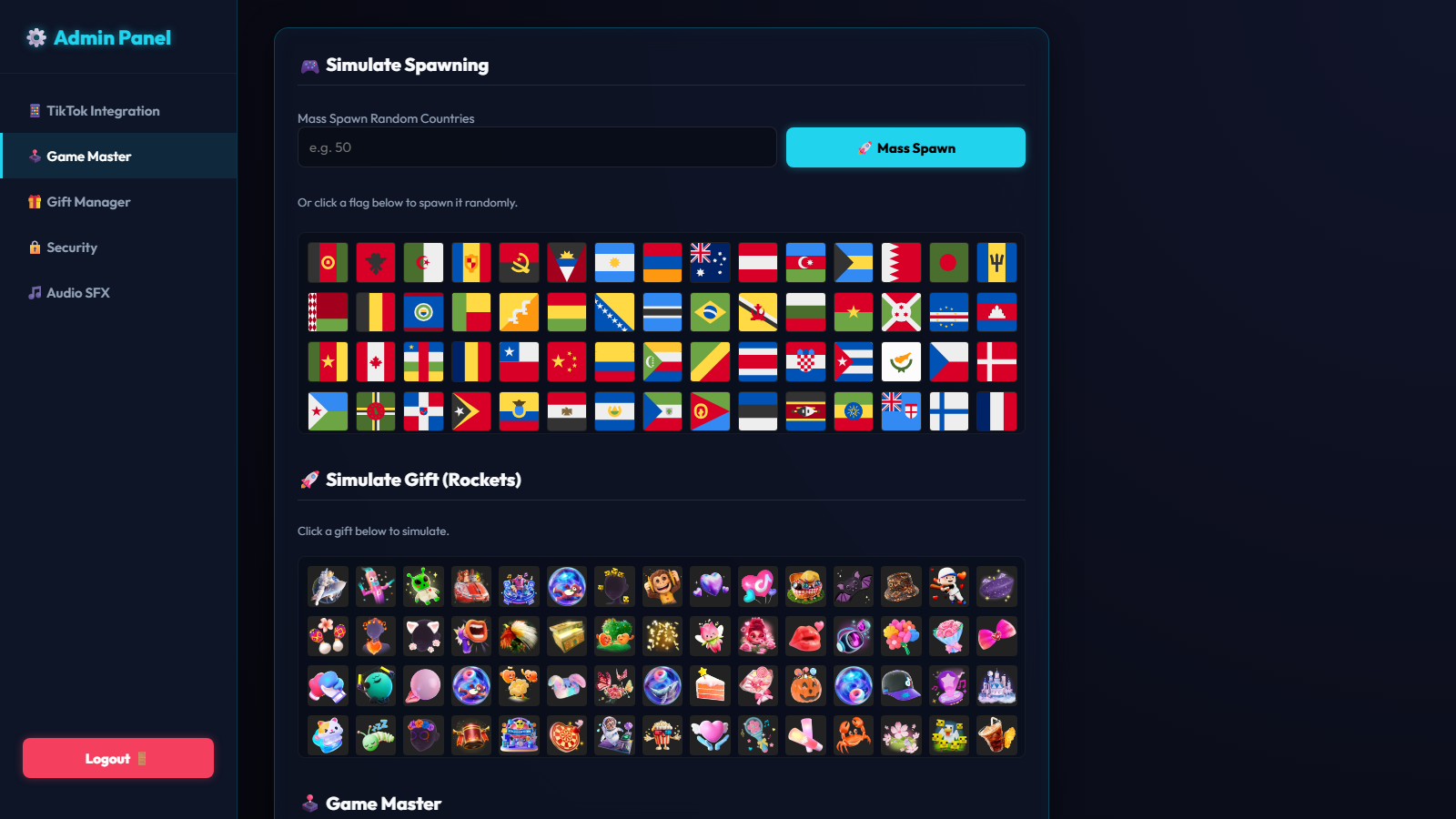
In the 🕹️ Game Master tab you can configure:
- Max Balls per Arena: Hard cap on how many balls can exist in a single match.
- Min Players to Start Match: The minimum number of balls required before Battle can begin. While the arena has fewer balls than this during the countdowns, the game adds a bot every 2 seconds until the number is reached.
9. Branding & Rebranding
You don't need any coding experience to make this game feel like your own. Here's exactly where to look:
Browser Tab Title
Change the text shown in the browser tab / OBS source name:
- Game page: edit the
<title>tag inSource/templates/game.html. - Admin page: edit the
<title>tag inSource/templates/admin.html.
Admin Panel Colors
The Admin Panel's color scheme is controlled by CSS variables at the top of Source/templates/admin.html, inside the :root block:
Change any of these hex values and the entire Admin Panel (buttons, borders, glows) updates to match, with no need to hunt through the file.
In-Game HUD Colors
The on-screen boxes (ALIVE, Timer, Next Spawn, Bomb Counter) get their colors from the .box-cyan, .box-red, .box-orange, and .box-purple classes in Source/static/style.css. Update the border/color/box-shadow hex values in each class to match your own brand palette.
Fonts
The game and Admin Panel both use the Outfit font, loaded locally from Source/static/fonts/ (no external font CDN required). To use a different font, replace the .woff2 files and adjust the @font-face rules in Source/static/fonts/outfit.css, then update the font-family references in style.css and admin.html.
Adding a Logo
There's no logo image baked into the canvas by default (to keep the arena view clean for streaming). If you'd like to add a watermark or logo:
- Simplest: add your logo as an absolutely-positioned
<img>inside#ui-layerinSource/templates/game.html, and position it with CSS instyle.css. - Admin sidebar: replace the
⚙️ Admin Paneltext in the.sidebar-headerofadmin.htmlwith your own<img>logo tag.
10. Troubleshooting
Game isn't showing in OBS
Ensure that the Python terminal is running. If it crashed or was closed, open the terminal and run python app.py again. Then double-click your Browser Source in OBS and click "Refresh cache of current page".
TikTok connection fails
Make sure your TikTok account is currently Live. The TikTok API cannot connect to an offline account. Also, ensure you typed the username exactly as it appears, without the @ symbol.
Sounds are not playing
Modern browsers block autoplaying sounds until the user interacts with the page. In OBS, this is usually bypassed automatically. If opening in a regular browser, click anywhere on the page once to enable audio context.
11. Support
If you have any questions or run into issues not covered in this documentation, please reach out via the item support page on CodeCanyon. When requesting support, please include:
- A detailed description of the problem.
- Screenshots of the error (especially any text in the Python terminal).
- The operating system you are using.
Happy Streaming!